Turn on screen reader support is a setting many people see in tools like Google Docs, but they’re not always sure what it actually does. It sounds technical, but the idea behind it is simple and helpful.
You might notice this option when your text isn’t being read properly, or when someone asks you to enable accessibility features. It can feel confusing at first — especially if you’ve never used a screen reader before.
👉 Quick Answer:
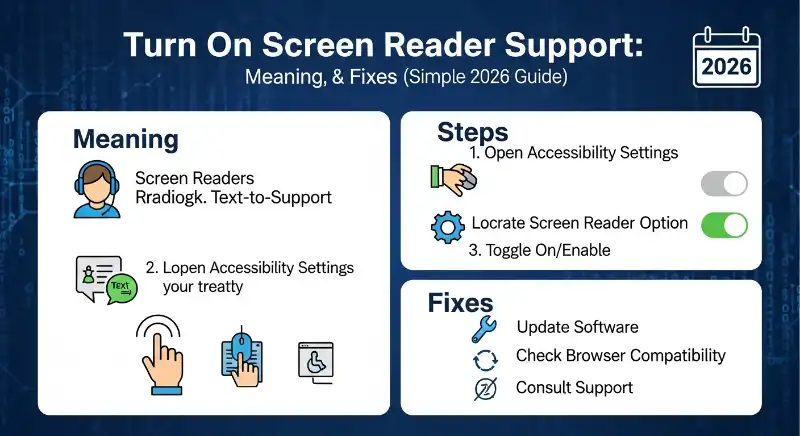
Turning on screen reader support means enabling compatibility so assistive tools can read and navigate content correctly. It helps screen readers understand text, structure, and formatting, making content accessible and easier to use.
What Does “Turn On Screen Reader Support” Mean?
This setting allows your app or browser to work properly with a screen reader.
In simple terms:
- It improves how content is read aloud
- It helps navigation using keyboard shortcuts
- It makes documents easier for assistive tools to understand
👉 Without this setting, screen readers may miss or misread content.
What Is Screen Reader Support & Why Is It Used?
To understand this feature, think of it as a bridge between content and accessibility tools.
What Is Screen Reader Support?
Screen reader support is a feature that helps software communicate clearly with screen readers.
A screen reader is a tool that:
- Reads text aloud
- Describes elements (buttons, headings, links)
- Helps users navigate without a mouse
👉 The support setting ensures everything is structured properly for these tools.
Why Is It Important?
This feature is mainly used for accessibility, but it benefits more people than you might think.
It helps:
- Users with visual impairments
- People who prefer audio reading
- Students multitasking while listening
👉 Even if you’re not visually impaired, it can still be useful.
How to Turn On Screen Reader Support in Google Docs (Step-by-Step)
If you’re using Google Docs, this is where most people see this option.
Step-by-Step Guide
- Open your document in Google Docs
- Click on “Tools” in the top menu
- Select “Accessibility settings”
- Check the box: “Turn on screen reader support”
- Click OK
👉 That’s it — the feature is now enabled.
Real-Life Example
Imagine you’re using a screen reader like NVDA:
- Without support → text may read incorrectly
- With support ON → headings, lists, and formatting are clear
👉 It makes navigation smoother and more accurate.
How to Enable Screen Reader on Chrome, Windows & Mobile
Turning on support is one part — you also need the actual screen reader.
Chrome Browser
Chrome itself doesn’t have a full screen reader, but you can use extensions like:
- ChromeVox (built-in accessibility tool)
👉 Once enabled, it reads web pages aloud.
Windows (Narrator)
Windows has a built-in screen reader called Narrator.
Steps:
- Press Windows + Ctrl + Enter
- Narrator will start reading your screen
👉 It works across apps, including browsers and documents.
Android / iPhone
On mobile devices, screen readers are already built in:
Android:
- Go to Settings → Accessibility → TalkBack
iPhone:
- Go to Settings → Accessibility → VoiceOver
👉 Once turned on, your phone will read everything you touch.
What Are the Keyboard Shortcuts for Screen Reader Support?
Shortcuts make everything faster and easier.
| Function | Shortcut Key |
|---|---|
| Turn on screen reader support | Ctrl + Alt + Z |
| Start Narrator (Windows) | Windows + Ctrl + Enter |
| Navigate content | Arrow keys |
| Read selected text | Varies by tool |
👉 These shortcuts save time and improve usability.
Real Chat Scenario (How People Actually Use It)
Student: “My teacher said to turn on screen reader support in Docs. What does that mean?”
Friend: “It just helps the screen reader read your document properly.”
Student: “Do I need it?”
Friend: “Only if you’re using a screen reader — otherwise you can leave it off.”
👉 Simple, practical, and real.
Why Screen Reader Support Is Not Working (Fix Guide)
Sometimes the feature doesn’t work as expected. Here’s how to fix it.
Common Problems & Solutions
- ❌ Screen reader not reading text
👉 Make sure support is turned ON in settings - ❌ Nothing happens after enabling
👉 Check if a screen reader tool is active - ❌ Navigation not working
👉 Use keyboard shortcuts instead of mouse - ❌ Works in browser but not in Docs
👉 Refresh the page and re-enable support
Quick Fix Checklist
- Enable screen reader support
- Turn on your screen reader tool
- Use correct shortcuts
- Restart browser or device
👉 Most issues are solved with these steps.
Emotional Tone Interpretation (Why This Feature Matters)
At first, this feature may feel confusing or unnecessary.
But for someone who relies on it, it means:
- Independence
- Accessibility
- Equal access to information
👉 It’s not just a setting — it’s a gateway to usability.
Screen Reader vs Screen Reader Support (Key Differences)
This is where many users get confused.
| Feature | Screen Reader | Screen Reader Support |
|---|---|---|
| What it does | Reads content aloud | Enables compatibility |
| Required? | Yes (for reading) | Optional but helpful |
| Example | NVDA, Narrator | Google Docs setting |
👉 Simple idea:
Screen reader = tool
Support = helper setting
Who Should Turn On Screen Reader Support?
Not everyone needs it, but it’s useful in certain cases.
You should turn it ON if:
- You use a screen reader
- You rely on keyboard navigation
- You want better accessibility support
You can ignore it if:
- You don’t use assistive tools
- You prefer normal mouse navigation
👉 It depends on your usage.
Common Mistakes Users Make (Avoid These)
Here are common mistakes:
- ❌ Turning on support without using a screen reader
- ❌ Thinking it reads text by itself
- ❌ Ignoring keyboard shortcuts
- ❌ Not enabling the actual screen reader tool
👉 Fix: Use both tool + support together
Why This Feature Is More Important in 2026
Technology is becoming more inclusive.
In 2026:
- Accessibility is a priority
- Apps are designed for all users
- Voice-based interaction is growing
👉 Features like this are no longer optional — they’re essential.
When Should You Turn On Screen Reader Support? (Real-Life Use Cases)
Now that you understand what it does, the next question is simple: when do you actually need it?
Practical Situations
You should enable this feature when:
- You are using a screen reader like NVDA or Narrator
- Your teacher or workplace asks for accessibility compliance
- Text is not being read properly in Google Docs
- You prefer navigating with a keyboard instead of a mouse
👉 Think of it like turning on subtitles — not always needed, but very helpful in the right situation.
Everyday Scenario Example
Imagine you’re working on an assignment:
- You open Google Docs
- You turn on your screen reader
- But headings and lists sound confusing
👉 Turning on screen reader support fixes this instantly.
It organizes the document so the tool can understand it better.
Advanced Tips for Better Screen Reader Experience
Turning the feature ON is just the beginning. You can make your experience much smoother with a few simple habits.
Use Proper Document Structure
Screen readers rely heavily on structure.
So always:
- Use headings (H1, H2, H3)
- Create lists instead of long paragraphs
- Add clear spacing
👉 This helps the tool “understand” your content like a map.
Learn Basic Navigation Shortcuts
Instead of scrolling, use keys:
- Arrow keys → move line by line
- Tab → jump between elements
- Shortcut keys → jump to headings
👉 It saves time and improves control.
Keep Content Clean & Simple
Avoid:
- Overloaded formatting
- Random symbols
- Unclear structure
👉 Simple content = better reading experience
Screen Reader Support Not Working? (Deep Fix Guide)
If things still don’t work, don’t worry — this is common.
Problem 1: Text Not Reading Properly
Possible reason:
- Support not enabled correctly
Fix:
- Turn OFF and ON again
- Refresh the document
Problem 2: Screen Reader Not Responding
Possible reason:
- Tool is not active
Fix:
- Restart Narrator / NVDA
- Check accessibility settings
Problem 3: Keyboard Shortcuts Not Working
Possible reason:
- Wrong shortcut or conflict
Fix:
- Try alternative keys
- Check system shortcut settings
Problem 4: Works in One App but Not Another
Possible reason:
- App compatibility issue
Fix:
- Update browser or app
- Use recommended browser (Chrome works best with Docs)
Screen Reader Support vs Accessibility Mode (Hidden Difference)
Many users think these are the same — but they’re not.
Screen Reader Support
- Helps screen readers understand content
- Works mainly inside apps like Google Docs
- Improves reading accuracy
Accessibility Mode
- Broader setting
- Includes zoom, contrast, voice controls
- Works across the entire system
👉 Simple idea:
Support = specific feature
Accessibility = full system setup
Comparison Table (Quick Clarity)
| Feature | Screen Reader Support | Accessibility Mode |
|---|---|---|
| Scope | App-specific | System-wide |
| Purpose | Improve reading | Improve overall usability |
| Used with | Screen reader tools | Multiple accessibility tools |
| Example | Google Docs setting | Windows Accessibility menu |
👉 This clears one of the biggest confusions users have.
Real Chat Scenario (Troubleshooting Case)
User: “I turned on screen reader support but nothing is happening.”
Friend: “Did you turn on a screen reader like Narrator?”
User: “No…”
Friend: “That’s why. Support works with the tool, not alone.”
👉 This is the most common mistake.
Common Hidden Mistakes (Advanced Level)
Even experienced users make these:
- ❌ Thinking support = screen reader
- ❌ Ignoring document structure
- ❌ Using mouse instead of keyboard
- ❌ Not updating browser
👉 Small mistakes can break the whole experience.
Future of Screen Reader Support (2026 & Beyond)
Technology is evolving fast — and accessibility is becoming smarter.
What’s Changing?
- AI-powered screen readers
- Voice-controlled navigation
- Smarter content interpretation
👉 Soon, tools won’t just read — they’ll understand.
Why It Matters More Now
In 2026:
- More people rely on digital content
- Accessibility laws are stronger
- Inclusive design is standard
👉 Features like this are becoming essential, not optional.
FAQ People Also Ask
What does “turn on screen reader support” mean?
It means enabling a setting that helps screen readers read and understand content correctly. It improves how text, headings, and elements are spoken aloud.
Do I need to turn on screen reader support?
Only if you are using a screen reader. If you don’t use tools like Narrator or NVDA, you usually don’t need to enable it.
How do I enable screen reader support in Google Docs?
Go to Tools → Accessibility settings → Turn on screen reader support, then click OK. Make sure your screen reader is also turned on.
Why is screen reader support not working?
Common reasons include:
- Screen reader tool is not active
- Setting is not properly enabled
- Browser or app needs refresh
👉 Turn both the tool and support ON for it to work.
What is the shortcut for screen reader support?
In Google Docs, you can use:
👉 Ctrl + Alt + Z to quickly enable or manage accessibility features.
Is screen reader support only for visually impaired users?
No. While it’s mainly designed for accessibility, anyone can use it — especially for listening to content or navigating without a mouse.
What is the difference between a screen reader and screen reader support?
A screen reader is the tool that reads content aloud. Screen reader support is the setting that helps the tool work properly inside apps like Google Docs.
Final Conclusion
At first, “turn on screen reader support” might sound like just another technical option hidden inside a menu.
But when you look closer, it’s something much more meaningful.
It’s about making sure that everyone — no matter how they access content — can read, understand, and interact with it easily.
Think about it like this:
Some people use their eyes to read. Others rely on sound. This feature quietly connects both worlds.
In 2026, where everything is digital, small settings like this make a big difference. They turn complex tools into inclusive experiences.
👉 So even if you don’t use it today, understanding it makes you a smarter and more aware user.