If your teacher has asked you to open JoinCRS.com, you may be wondering what this website is actually for. The name can look unfamiliar, especially if you have never used Classroomscreen before.
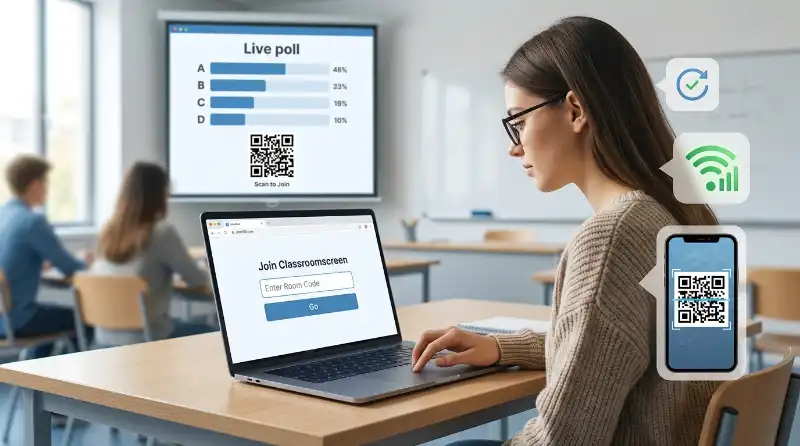
JoinCRS is connected with Classroomscreen’s Poll feature. It gives students or other participants a way to respond to a live classroom poll from their own device. Classroomscreen’s official instructions tell participants to visit the JoinCRS address or scan the QR code shown by the teacher.
If you are trying to figure out whether you are on the right website, how to enter your teacher’s code, or why you cannot get into the activity, you are in the right place. Let’s solve those questions one at a time so you know what to do next.
What Is JoinCRS.com and Why Did Your Teacher Give You This Link?
If you were simply given a JoinCRS link or told to enter a code, the first thing you need to know is what role the site plays.
JoinCRS is not something you normally use to build an entire lesson. It is tied to Classroomscreen’s remote voting system. A teacher can create a Poll in Classroomscreen, turn on remote voting, and then give students a link, code, or QR code so they can send their answers from their own devices.
So, if your teacher says something like, “Go to JoinCRS and enter this code,” they are usually asking you to join an active Poll.
What Does JoinCRS Do for Students?
Think of the two sides like this:
Classroomscreen: The teacher creates and displays the activity.
JoinCRS: The participant uses the provided access method to respond.
The official Classroomscreen documentation describes the Join app as being used by participants for the remote voting function of the Poll widget.
That means you should not expect JoinCRS to look like a normal school portal with your classes, grades, homework, and messages.
You are there because your teacher has an activity running.
Why Does the Teacher Use It?
The main reason is simple: students can answer from their own devices while the teacher sees the responses through the Poll.
Classroomscreen currently supports remote Poll voting and offers question formats such as multiple choice, smileys, and True/False.
For example, your teacher might display:
Which answer is correct?
You open the Join page, enter the code, see the question, and choose your answer.
You know, it is basically a bridge between the teacher’s Classroomscreen screen and your device.
What JoinCRS Is Not
It is useful to clear up one common misunderstanding.
JoinCRS is not the same thing as the complete Classroomscreen teacher workspace.
Classroomscreen provides the wider classroom tools. Its Poll widget can be used for live responses, and remote voting lets students participate from their own devices.
So if you searched for JoinCRS because your teacher gave you a code, you generally do not need to learn every Classroomscreen feature first.
You only need to follow the joining instructions for the activity.
At this point, the main confusion is solved: JoinCRS is connected to Classroomscreen’s remote Poll participation. Your teacher uses Classroomscreen to run the activity, while you use the participant side to respond.
How Do You Join a Classroomscreen Activity With a JoinCRS Code?
Now suppose you understand why you were sent there, but you are thinking:
“Fine, but how do I actually get into the activity?”
The process is simple when the teacher’s session is active.
Get the Code or QR Code From Your Teacher
Your teacher needs to start the Poll and enable remote voting.
Classroomscreen says that when remote voting is activated, a URL is displayed and a QR-code option is also available.
So look at the teacher’s screen.
You may receive:
- a code
- a JoinCRS link
- a QR code
If you were not given any of these, do not guess a code. Ask your teacher for the current joining information.
Open the Join Page
Open the JoinCRS address your teacher provided.
The current Classroomscreen join page shows a field where participants can enter a code and continue.
If your teacher gave you a direct link, use that link instead of searching for random JoinCRS pages.
This is especially useful in a school setting because you want to make sure you are entering the code on the intended participant page.
Enter the Code Exactly as Shown
Type the code your teacher gives you.
Check the numbers carefully before pressing the button.
If the code is:
1234 567
do not add extra numbers or use an old code from a previous activity.
Once the code is accepted, you should be taken into the active participation experience connected to the teacher’s Poll.
What Happens After You Join?
After you successfully enter, your next action depends on what the teacher has created.
You may see a Poll question with answer choices. Classroomscreen currently supports multiple-choice, smiley, and True/False Poll formats.
For example:
Question:
Which planet is known as the Red Planet?
Choices:
- Earth
- Mars
- Venus
- Jupiter
You simply select the answer and submit your response.
You do not need to turn the experience into something more complicated than it is.
The teacher is running the activity. Your job is to join the active session and respond.
What If Your Teacher Shows a QR Code?
A QR code can make the process even quicker.
Classroomscreen’s official Poll documentation says teachers can display a scannable QR code for remote voting.
If your device has a camera or QR scanner, scan the code and follow the page that opens.
If the QR code does not work, you can use the provided JoinCRS link or code instead.
The joining problem is now resolved: get the current code or QR code from the teacher, open the intended Join page, enter the code, and respond to the active Poll.
Do You Need a Classroomscreen Account to Join?
This is where many students get confused.
You may see Classroomscreen mentioned and assume you need to create an account before you can participate. But joining a teacher’s activity and creating a teacher-side Classroomscreen account are different things.
Classroomscreen’s current documentation distinguishes between its account types and the no-account experience. Remote Poll voting is listed as a feature of Basic and Pro accounts on the teacher side.
Do Students Need to Create a Teacher Account?
If you are simply participating in the Poll your teacher has created, do not assume you need to sign up for a teacher account.
The participant experience is designed for people responding to the remote Poll.
The important thing is to follow the joining method your teacher provides.
If the page you reach suddenly asks you for information that does not match your classroom instructions, stop and check with your teacher rather than entering random personal details.
Do You Need a Password?
For a normal Poll participation flow, the key item you receive from the teacher is the session access code or QR code.
That is different from having a personal Classroomscreen account.
So if you are sitting in class thinking, “I don’t know my Classroomscreen password,” don’t assume that is why you cannot participate.
First check whether your teacher simply wants you to join the Poll using the provided code.
Do You Need to Download an App?
The Join experience is web-based. The current Classroomscreen join page works as a browser page where a participant enters the code.
That means you should first try the browser on the device your school or teacher allows.
You do not need to turn a simple classroom Poll into a complicated installation project.
If the page will not load, that is a different problem. It may involve the code, browser, device, or school network. We will deal with those problems separately rather than mixing them together.
So the access confusion is clear: don’t create an account or install something just because the name Classroomscreen appears. Follow the teacher’s specific participant instructions first.
What Can You Actually Do After You Join?
Once you are inside the activity, you may still wonder:
“What am I supposed to do here?”
The answer depends on the Poll your teacher has created, but the main purpose is to send your response to the live classroom question.
You May Answer a Multiple-Choice Question
Classroomscreen’s Poll supports multiple-choice questions.
Your teacher can provide several answer options, and you select the one you think is correct.
This can be useful for a quick classroom check.
For example, after teaching a science lesson, the teacher might ask a question with four possible answers.
You choose your answer from your device rather than calling it out across the room.
You May Use True or False
The Poll also supports True/False questions.
These are useful when the teacher wants a quick response to a statement.
For example:
“The Earth revolves around the Sun.”
You choose the appropriate response.
The point is speed. The teacher can collect responses while the class is still working through the lesson.
You May Respond With a Smiley
Classroomscreen also supports a smiley-based Poll format.
This can be useful for quick reactions or classroom check-ins rather than a traditional right-or-wrong question.
For example, a teacher may ask students how confident they feel about a topic.
You choose the response that best matches your answer.
Does JoinCRS Give You the Whole Classroomscreen?
No.
This is an important distinction.
You are using the participant side of a classroom Poll. You are not suddenly getting the teacher’s complete Classroomscreen workspace.
The teacher controls the Poll from Classroomscreen, while participants use the remote voting experience to respond.
So if you expected a dashboard with lesson plans, student management, saved screens, or other teacher tools, that is why you may not see them.
Your problem here is resolved: after joining, your main task is to participate in the active Poll your teacher has created—not manage the classroom platform.
Why Is Your JoinCRS Code Not Working?
You entered the code your teacher gave you, but JoinCRS still will not let you continue. Before assuming the website is broken, check the code and the class session itself.
Check the Code Carefully
JoinCRS codes are easy to mistype. Look at the teacher’s screen again and compare every letter or number.
If you copied the code from a message, try entering it manually. A single wrong character can stop you from joining the activity.
Make Sure Your Teacher’s Activity Is Still Active
If the code looks correct but it still does not work, the problem may be on the teacher’s side. The Poll needs to be active for students to participate.
Ask your teacher to check whether the activity is still open and whether they are still using the same code.
Refresh and Try Again
A temporary browser problem can also interfere with loading. Refresh the page and enter the code again. If the page still behaves strangely, close the browser and reopen it.
Classroomscreen’s current troubleshooting guidance also recommends refreshing, restarting the browser or device, and checking cookies when loading problems continue.
Try a Different Supported Browser
JoinCRS is part of a web-based service, so you do not normally need to install software just to use it. Classroomscreen currently supports browsers such as Chrome, Firefox, Edge, Safari, and newer iPadOS browsers.
If it fails in one browser, trying another updated browser can help you tell whether the problem is local to your device.
Why Won’t JoinCRS Load on Your School Network?
Sometimes the code is fine, but the page itself will not load. This can happen when a school network, firewall, or web-filtering system blocks part of the Classroomscreen service.
Classroomscreen specifically says network restrictions can cause loading problems and broken features such as polls, with school networks being a common source of the issue.
Test Whether the Network Is the Problem
If your school rules allow it, try the same page on another permitted network or device.
If JoinCRS works there but not on the school network, that is a useful clue. It means repeatedly entering the same code probably will not solve the problem.
Ask School IT to Check the Network
If the school network is blocking the service, a student usually cannot fix that from the browser.
Classroomscreen provides network guidance for IT administrators because its service may need to be allowed through school firewalls and filtering systems.
So if several students cannot join while using the same school network, tell your teacher or school IT team rather than creating another account or repeatedly changing the code.
Why Does JoinCRS.com Open a Classroomscreen Page?
Seeing Classroomscreen after starting with JoinCRS can be confusing. You may wonder whether you have been sent to the wrong website.
You have not necessarily gone to the wrong place.
Classroomscreen’s own documentation tells teachers that students can use www.joincrs.com to cast votes in a remote Poll. Its current terms also define its web-based applications as being offered on both Classroomscreen and JoinCRS domains.
In simple terms, JoinCRS is connected to the Classroomscreen service that runs the classroom activity.
That is why the two names can appear together during the joining process.
You do not need to treat the Classroomscreen page as a completely unrelated service just because the address or branding changes.
Is JoinCRS.com Legitimate and What Information Does It Handle?
If you found JoinCRS through a teacher’s class activity, the next question is reasonable: Is this a real Classroomscreen service, and what happens to my information?
The official Classroomscreen materials directly identify joincrs.com as one of the domains covered by its privacy policy. Its terms also describe the applications on Classroomscreen and JoinCRS as web-based applications.
That gives you a much better way to evaluate the site than relying only on how familiar the domain name looks.
How to Recognize the Official Join Experience
The official joining flow is designed around entering a class or activity code. The teacher can also provide a QR code for students to use.
Classroomscreen’s own teaching documentation specifically tells teachers to send students to JoinCRS for remote Poll participation.
If a page unexpectedly asks you for unrelated sensitive information, stop and ask your teacher before continuing.
What Official Privacy Information Says
Classroomscreen says it does not sell personal information and explains that its privacy policy covers online activity on joincrs.com. It also says that information processed without an account can include technical details such as IP address, browser, date, and time.
So “you do not create an account” should not be confused with “the website processes no information.”
Those are two different things.
What About Student Data?
Classroomscreen’s current privacy information says it may process identifiable teacher and student information in its service and describes security measures including encryption at rest and in transit.
For a normal classroom activity, the important point is simple: use the official joining flow and avoid entering personal information that your teacher or the activity does not require.
Is JoinCRS Free to Use?
For a student joining a teacher’s Poll, you generally do not need to purchase a separate JoinCRS subscription.
The important distinction is between participating in an activity and running Classroomscreen as a teacher.
Classroomscreen offers account plans for its service, including a free Basic account and paid Pro features. Its current documentation also identifies remote Poll voting as part of the service used for student participation.
So if your teacher simply says, “Go to JoinCRS and enter this code,” that does not mean you need to buy a plan.
If a payment page appears during a normal student joining process, stop and check with your teacher rather than entering payment information.
What Should You Do If JoinCRS Still Doesn’t Work?
If you have already checked the code, refreshed the page, and tried another supported browser, it is time to stop guessing.
Use this order:
Confirm the Teacher’s Session Is Active
Ask your teacher whether the Poll is still open and whether the code on the screen is the current one.
This is especially useful when several students are having the same problem.
Test Another Device or Allowed Network
If possible within your school’s rules, try another supported device or connection.
If it works elsewhere, the problem may be with the original browser, device, or network rather than the JoinCRS code.
Ask the Teacher to Check the Activity
Your teacher can confirm whether the Poll is active and whether other students are successfully joining.
This is usually more useful than repeatedly refreshing the same page.
Contact School IT When the Network Is Blocking It
If JoinCRS works outside the school network but not on school Wi-Fi, tell the school’s IT team.
Classroomscreen specifically provides network troubleshooting information for situations where school firewalls or filtering services interfere with its applications.
The goal is not to keep trying random fixes. You want to identify whether the problem comes from the code, the teacher’s session, your browser/device, or the school network.
JoinCRS.com FAQ
Can students use JoinCRS without creating a Classroomscreen account?
The student joining flow is based on entering the activity code rather than signing in as a teacher. Classroomscreen’s official teaching documentation directs students to JoinCRS to cast votes in remote Polls.
Is JoinCRS the same thing as Classroomscreen?
JoinCRS is part of the Classroomscreen service. Classroomscreen’s terms identify both domains as locations for its web-based applications.
Can I join a JoinCRS activity from my phone?
Because the service is web-based, you can use a supported mobile browser rather than needing a dedicated JoinCRS installation. Classroomscreen says no installation is required for its web-based application.
Why does my teacher give me a QR code instead of a JoinCRS code?
A QR code gives students another way to reach the activity. Classroomscreen specifically documents QR-code participation for remote Polls.
What should I do if every student gets the same JoinCRS error?
Tell the teacher first. If the issue affects multiple students on the same school network, the network or school filtering system may be involved. Classroomscreen lists network restrictions as a possible cause of Poll and loading problems.
Final Takeaway
JoinCRS.com is used as the student-facing entry point for Classroomscreen activities such as remote Polls. Your teacher may give you a code or QR code, and your job is usually to use that information to enter the active classroom activity.
If it does not work, do not assume the code is wrong straight away. Check the code, confirm the teacher’s activity is active, refresh the browser, and try a supported browser or device. If the site works elsewhere but not on the school network, the network may be blocking part of the service.
Most importantly, you do not need to turn a simple classroom join problem into a long technical mystery. Find out whether the issue is the code, session, device, browser, or network, then use the fix that matches that specific problem.